
AI: Getting Started with the Gemini API
Before we jump into any code, it helps to understand how people actually build apps on top of large language models (LLMs).
If your mental model was simply “developers send API calls to Gemini or OpenAI”, you were spot on. That is exactly what happens under the hood.😄
The good news is that it gets even nicer than raw HTTP calls. Gemini provides a specialised SDK that makes it super straightforward to talk to the API from your Angular app. In this post we will:
- spin up a fresh Angular project
(Angular 20) - install the Gemini SDK
(gen ai 1.29.1) - grab an API key and get billing sorted without accidentally racking up a huge bill
Installing the Gemini SDK
First, create or open the Angular project you want to use for this series. Once you are in the project folder, install the Google Generative AI SDK:
npm i @google/genai
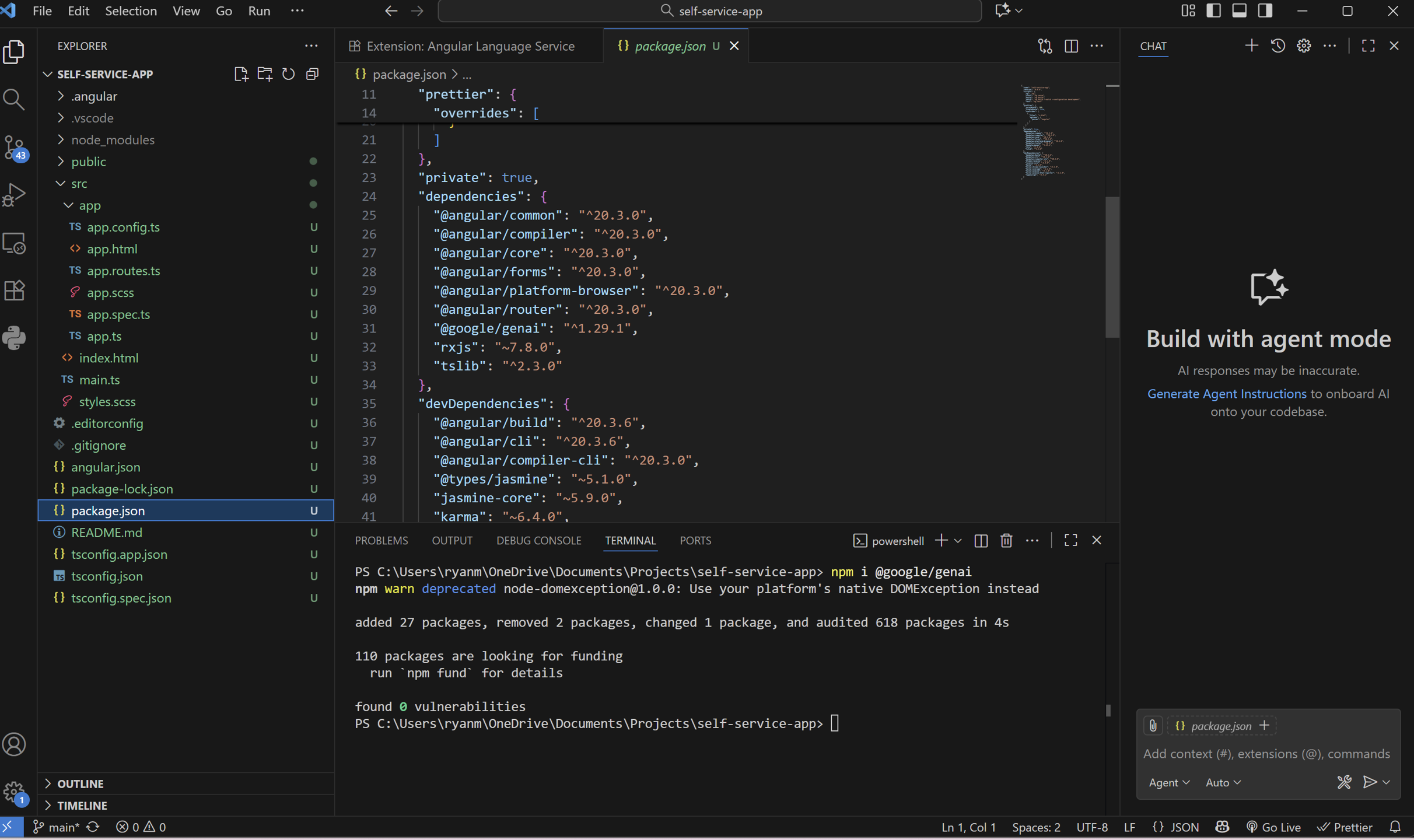
This will install the Google Generative AI SDK, which we will then use to make requests to the Gemini API in a way that is heaps better than spamming fetch calls.
Great! Now that the SDK is installed, we need a secure way to hold our API key.
💰 No Worries, Mate! Getting Your API Key and Billing Sorted
Now, before we proceed, we need to get over the first obstacles newcomers have to face, which often, in my experience, result in people being intimidated and giving up: that is, getting an API token and setting up billing. Lots of less experienced developers associate this with spending money without seeing it, making them hesitant and afraid of sudden, large charges.
However, I have great news! Google offers both a generous free tier and some models that are really cheap, so you won’t be racking up a massive bill.
Let’s do the following steps:
- Go to the Google Cloud Console and log in with your Google account.
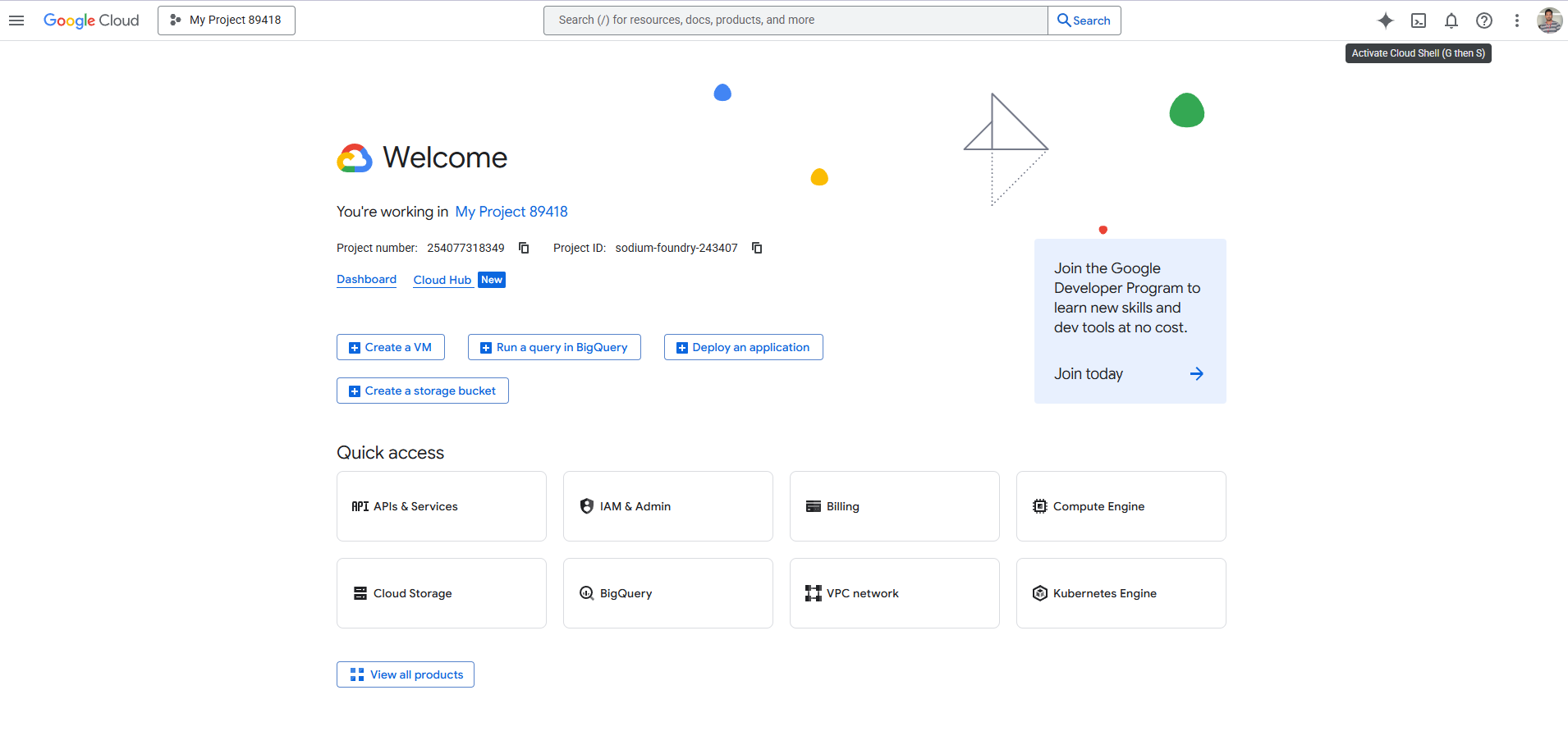
- Create a new project and give it a name you will remember (e.g.,
Angular-Gemini-Demo).
- Then head over to Google AI Studio and log in: Google AI Studio.
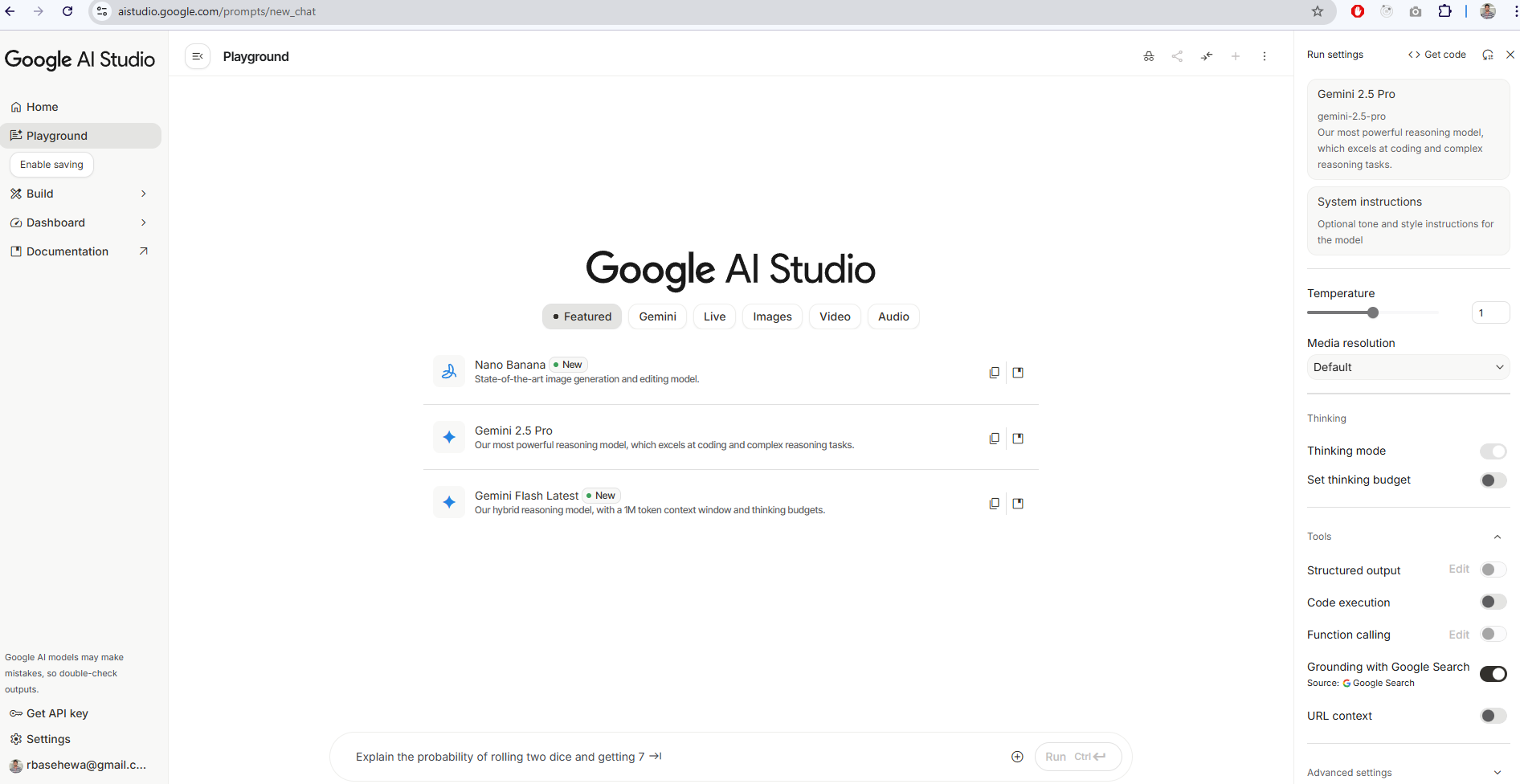
- Find the “Get API key” option on the left sidebar to navigate to the API key management page.
- Click “Create API key” and associate the key with the project you created in step 2.
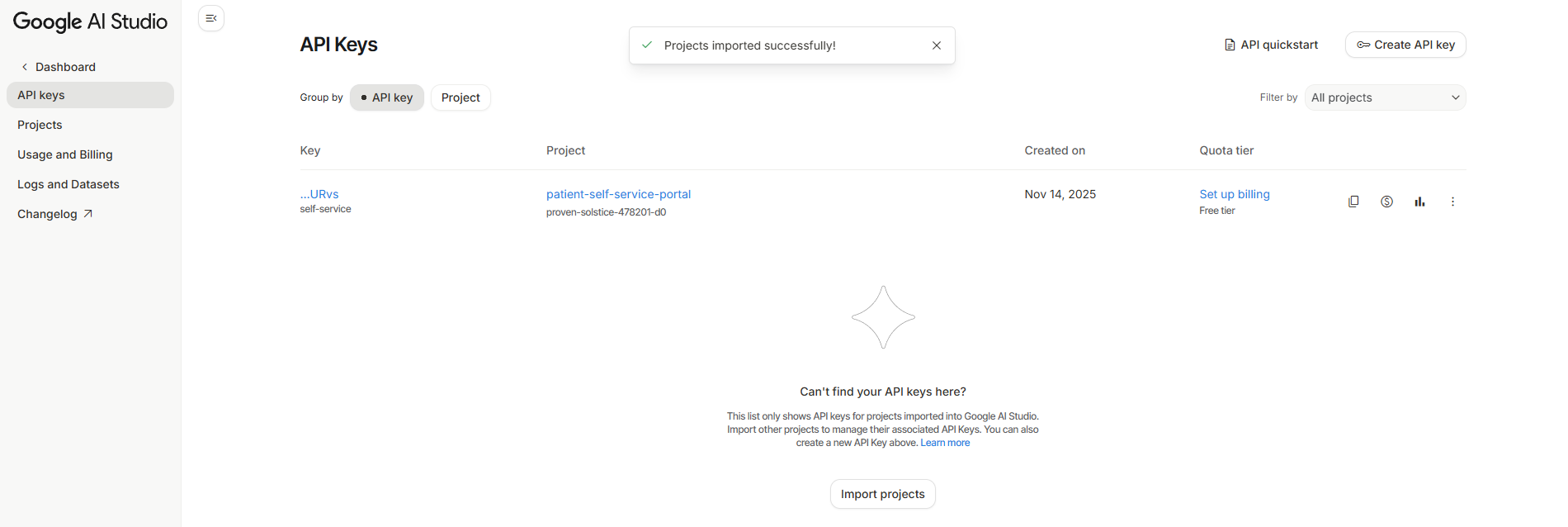
- Copy the API key somewhere safe (like a password manager) and keep it secret. We will need it in a moment!
🔒 Securing Our API Key (The Frontend Problem)
you’re a frontend developer, you might be thinking, “Can’t I just put the API key in my Angular environment file?” The answer is a huge NO. If you put the key in your frontend code, anyone can inspect your source code, grab the key, and use it to run up a massive bill on your behalf.
The only safe place to store and use the key is on a backend server. Since we are Angular developers, we’ll quickly set up a tiny Node.js/Express server to act as a secure proxy between our Angular app and the Gemini API.
Setting up the Node.js Server
In the root of your project (outside the main
src/ folder), create a new file calledserver.js.
First, let’s set up Express, CORS, and the
dotenvpackage for secure key storage:
Bash
npm install express cors dotenv
Now, add this basic setup code to your new
server.jsfile:
// server.js

// Load environment variables from .env file FIRST
require('dotenv').config();

const express = require('express');
const app = express();
const cors = require('cors');

const PORT = process.env.PORT || 3000;

app.use(cors()); // Enable CORS for Angular to talk to it
app.use(express.json()); // To parse JSON bodies from Angular requests

// Basic test route
app.get('/', (req, res) => {
  res.send('Hello from the Express server!');
});

app.listen(PORT, () => {
  console.log(`Server is running on port ${PORT}`);
});
🧐 Having a Squiz at the Response
After you send a request to the Gemini API, you don’t just get a simple text string back. You get a whole kit and caboodle of info! Here’s a look at the main bits we care about in the response object:
Expect result create instant from Gemini AI.
Field Name What It Is Why We Care sdkHttpResponse The raw HTTP response from Google’s servers, headers and status code and all. This is your go-to for debugging. If the model chucks a wobbly and returns an error, this field will tell you why so you can show the user a proper message instead of a vague error. candidates The actual generated content from the model. This is the main star of the show! In this case, we asked for a random greeting, and the model might have responded with “Howdy!” or “G’day!”. This array can hold multiple responses, which is important when we start streaming content instead of just waiting for the final answer. usageMetadata The stats on how many tokens (words/bits) were used for the request. This is super handy for monitoring and optimising costs. We’ll delve into the token count a bit later on to make sure we’re not wasting cash.
The next logical step is to explain how to set up the Angular service to talk to your secure backend.
🛠️ Creating an Angular Service to Interact with Our Backend
For now, we’ve only covered a very small portion of what we can do with the Gemini API, so let’s take it a step further and define an endpoint that actually takes some input from the user and responds to it, instead of just generating a random greeting.
1. Update the Express Server (server.js)
We need to add a new route to our backend that will securely take a prompt from the Angular app, send it to the Gemini API, and then send the model’s response back.
First, make sure you have your API key set up securely.
A. Securely Store Your API Key
Create a file named .env in the root of your project (the same folder as server.js).
Pop your secret key in there. This file is never committed to git (make sure it’s in your .gitignore file!).
  # .env file
  GEMINI_API_KEY="YOUR_SUPER_SECRET_KEY_FROM_STEP_5"
B. Add the New /generate-content Route
Now, update your server.js file to include the Gemini SDK and define the new route.
// server.js

// Load environment variables from .env file FIRST
require('dotenv').config();

const express = require('express');
const cors = require('cors');
// 1. Import the Gemini SDK
const { GoogleGenAI } = require('@google/genai');

const app = express();
const PORT = process.env.PORT || 3000;

// 2. Initialize the Gemini client using the key from .env
const ai = new GoogleGenAI({
  apiKey: process.env.GEMINI_API_KEY,
});
const model = "gemini-2.5-flash"; // A fast and cost-effective model!

app.use(cors());
app.use(express.json());

// Basic test route
app.get('/', (req, res) => {
  res.send('Hello from the Express server!');
});

// 3. New route to handle the user's prompt
app.post('/generate-content', async (req, res) => {
  // Grab the prompt from the Angular request body
  const { prompt } = req.body;

  if (!prompt) {
    return res.status(400).send({ error: "Missing prompt in request body, mate!" });
  }

  try {
    // Send the prompt to Gemini
    const result = await ai.models.generateContent({
      model: model,
      contents: prompt,
    });

    // Send the model's response back to Angular
    res.json({ text: result.text });

  } catch (error) {
    console.error("Gemini API Error:", error);
    res.status(500).send({ error: "Something went belly up with the AI request." });
  }
});


app.listen(PORT, () => {
  console.log(`Server is running on port ${PORT}`);
});
2. Create the Angular Service Now for the fun part: making the Angular service that talks to our new secure backend route.
Generate a service (if you haven’t already):
ng generate service gemini
Open src/app/gemini.service.ts and add the following code:
// src/app/gemini.service.ts
import { Injectable, inject } from '@angular/core';
import { HttpClient } from '@angular/common/http';
import { Observable } from 'rxjs';

// The URL for our Express server
const API_URL = 'http://localhost:3000';

@Injectable({
  providedIn: 'root'
})
export class GeminiService {
  private http = inject(HttpClient);

  /**
   * Sends a prompt to our secure backend proxy and returns the response.
   * @param prompt The user's text input.
   * @returns An observable containing the model's text response.
   */
  generateContent(prompt: string): Observable<{ text: string }> {
    // Send the prompt as JSON to our secure backend route
    return this.http.post<{ text: string }>(
      `${API_URL}/generate-content`,
      { prompt }
    );
  }
}
Now, your Angular app has a clean, secure service it can use to ask the Gemini model anything it likes, all without exposing that precious API key to the world!
Cheers, Ryan